The Pera Web Wallet is discontinued. This guide only applies while the Web Wallet is still reachable. To use a Ledger with the Pera mobile app, see Pairing your Ledger device. For desktop use, see the Pera Web Extension.
How to Connect and Use Ledger Nano X, S and S+ with Pera Web Wallet
Pera Web Wallet supports accounts backed by a Ledger Nano hardware wallet. Pera Web supports all models of the Ledger Nano:
- Ledger Nano X can be connected via USB or Bluetooth (on Bluetooth-supported browsers)
- Ledger Nano S and S+ can be connected via USB
- Ledger devices can only be connected via chromium browsers such as Google Chrome, Brave, Edge, etc. Currently, Firefox and Safari are not supported.
Before you can use Ledger Nano with Pera, you need to set up your Ledger Nano following the instructions you received with the device. Then, download Ledger Live and install the Algorand App.
If this is your first time using Pera Web, you’ll see the following options:
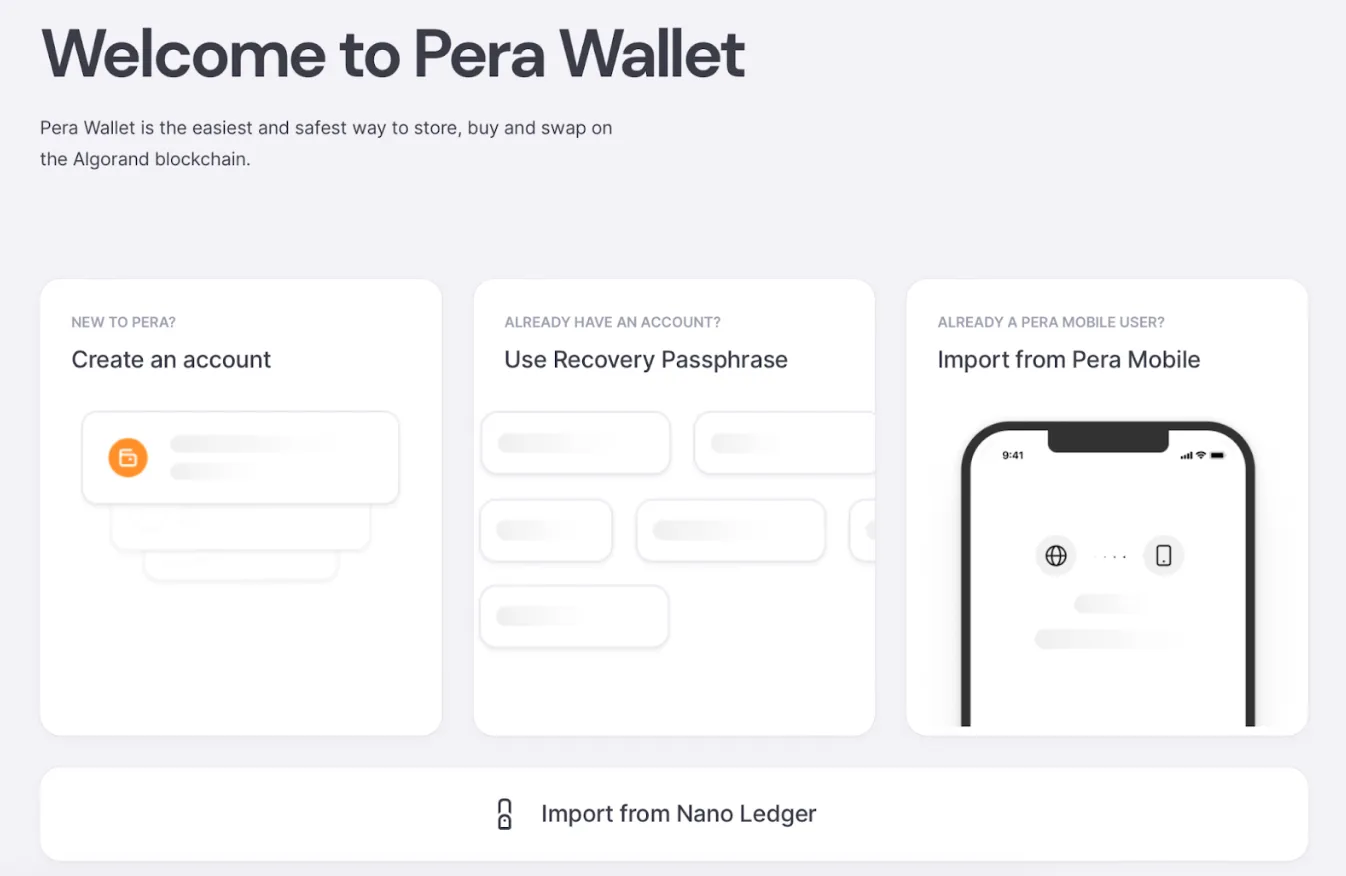
Select Import from Nano Ledger. You’ll be asked to set a passcode - this encrypts your accounts locally on the current device and browser, and is used to lock and unlock your wallet. You can then proceed through the Connect to Ledger flow.
If you already have a Pera Web Wallet, select Add Account and then Connect Nano Ledger:
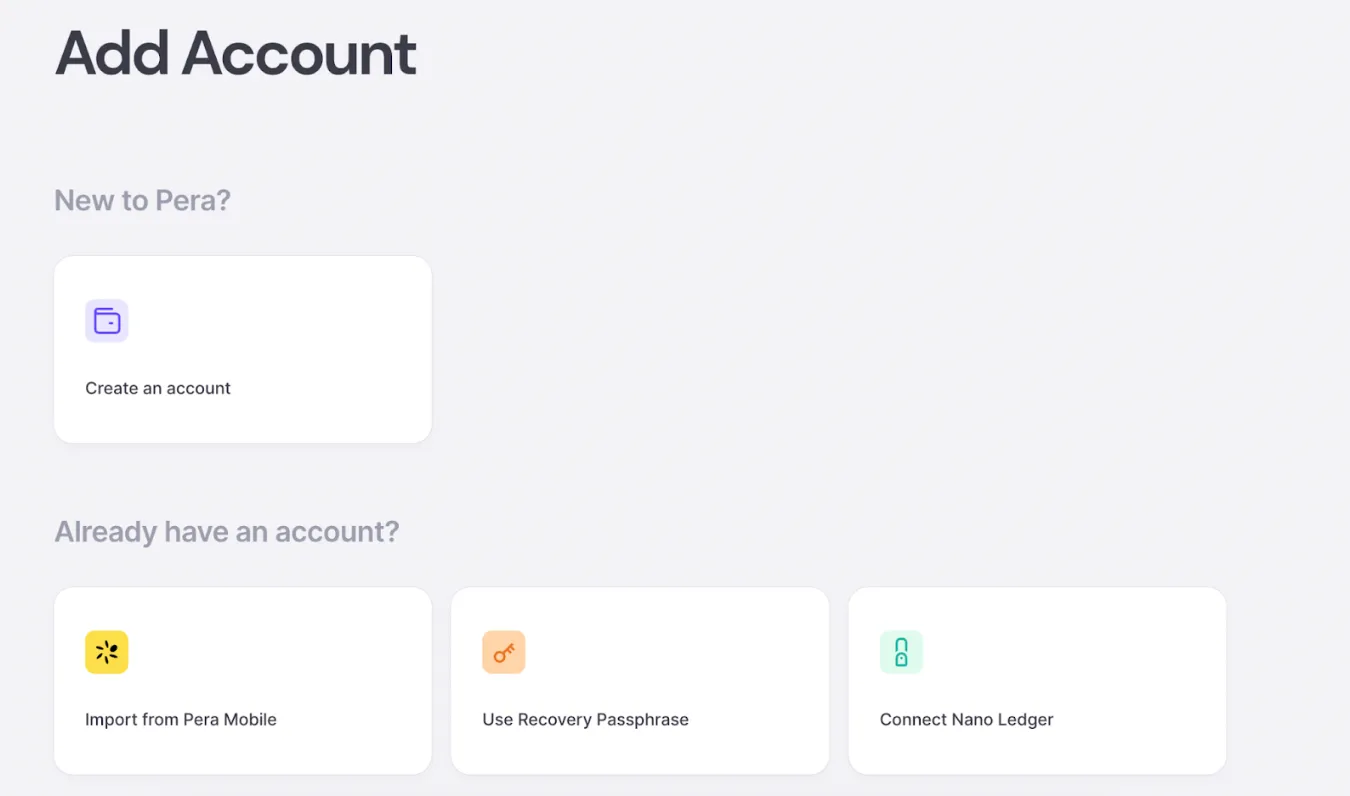
You can then proceed through the Connect Ledger flow.
How to connect Ledger with your Pera Wallet?
- Select how you’d like to pair your Ledger. We recommend pairing with USB where possible. Bluetooth is only supported on the Ledger Nano X, on Bluetooth-supported browsers (Google Chrome, Brave, Edge etc.):
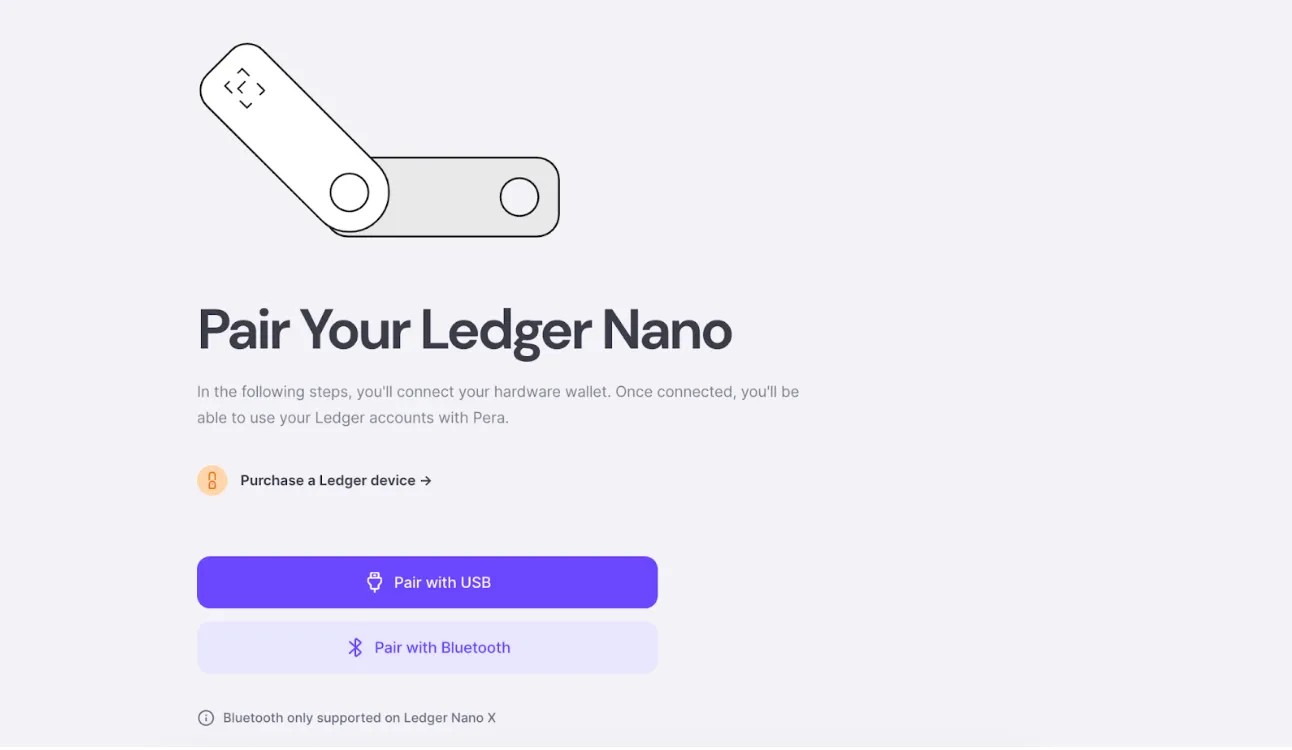
- Plug in your Ledger or ensure Bluetooth is enabled
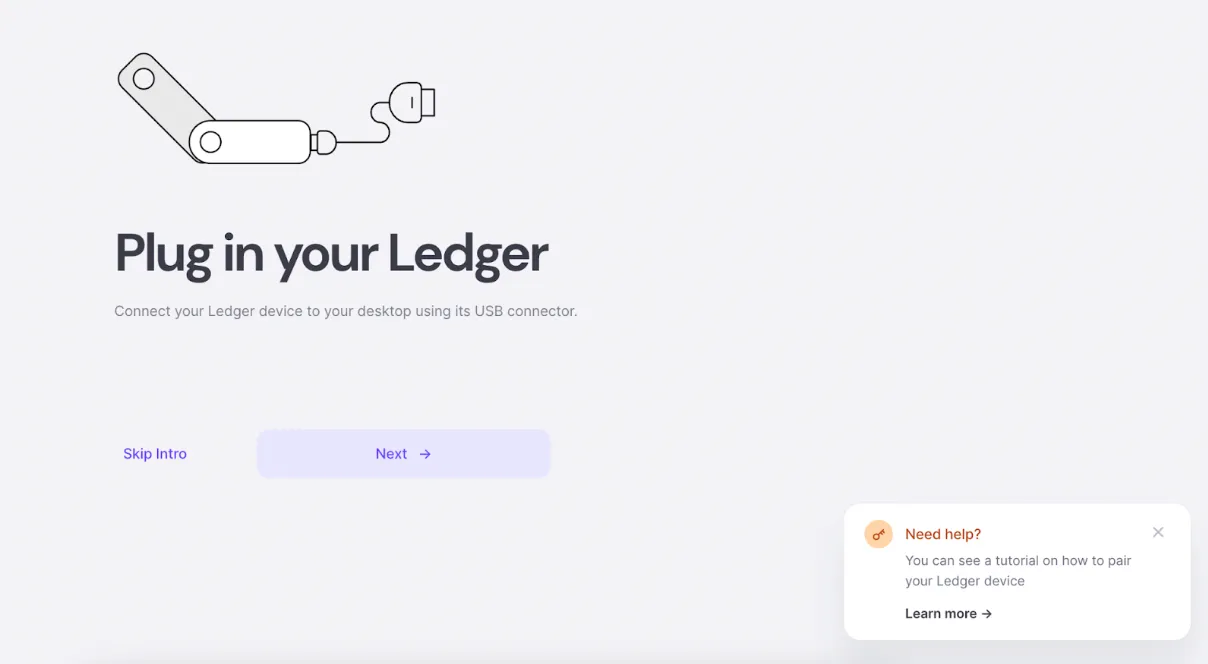
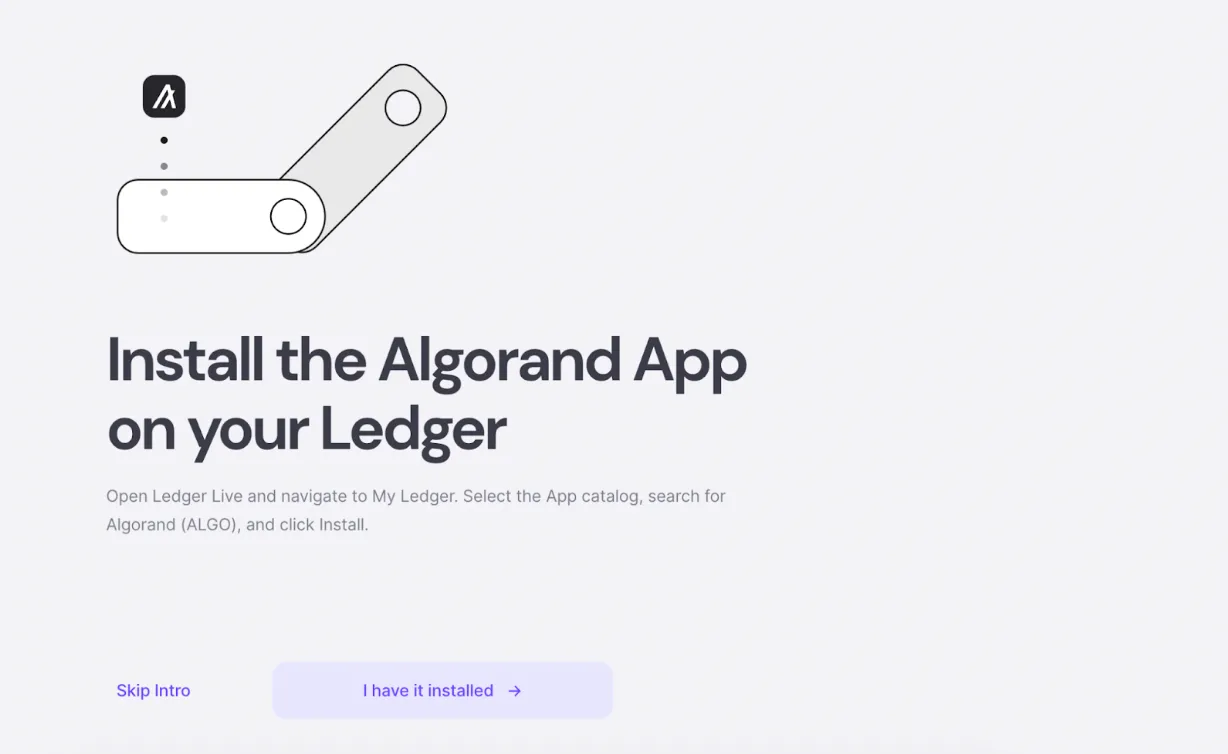
- Ensure the Algorand App is installed on your Ledger:
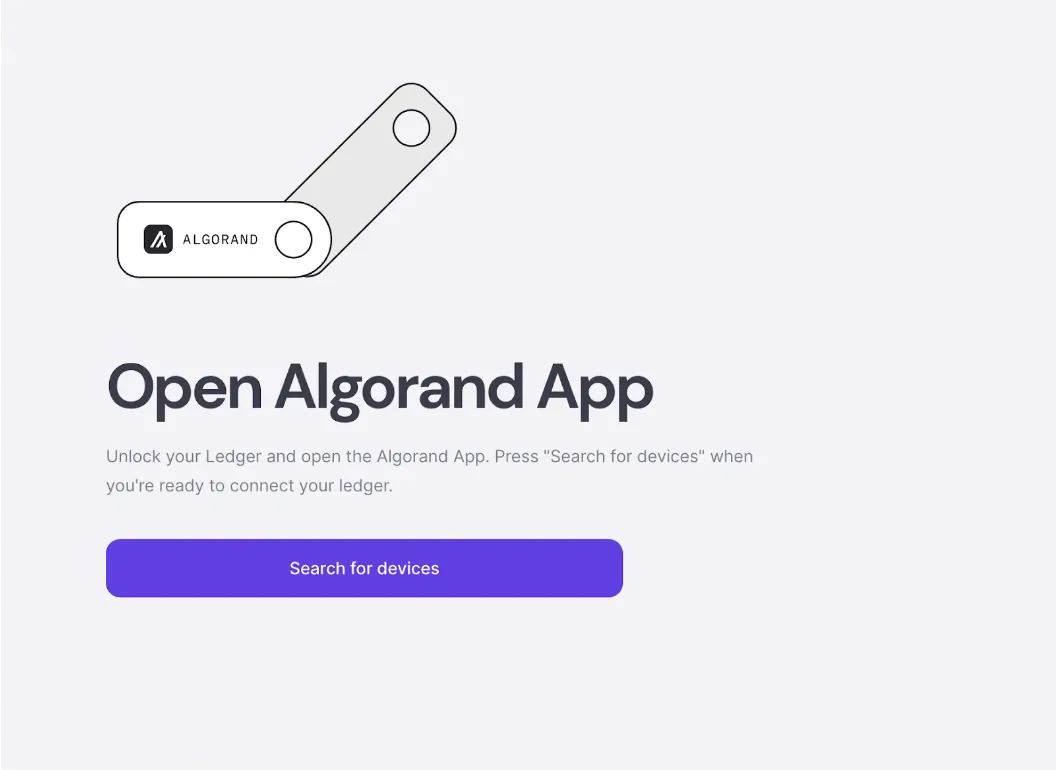
- Open the Algorand App and click Search For Devices:
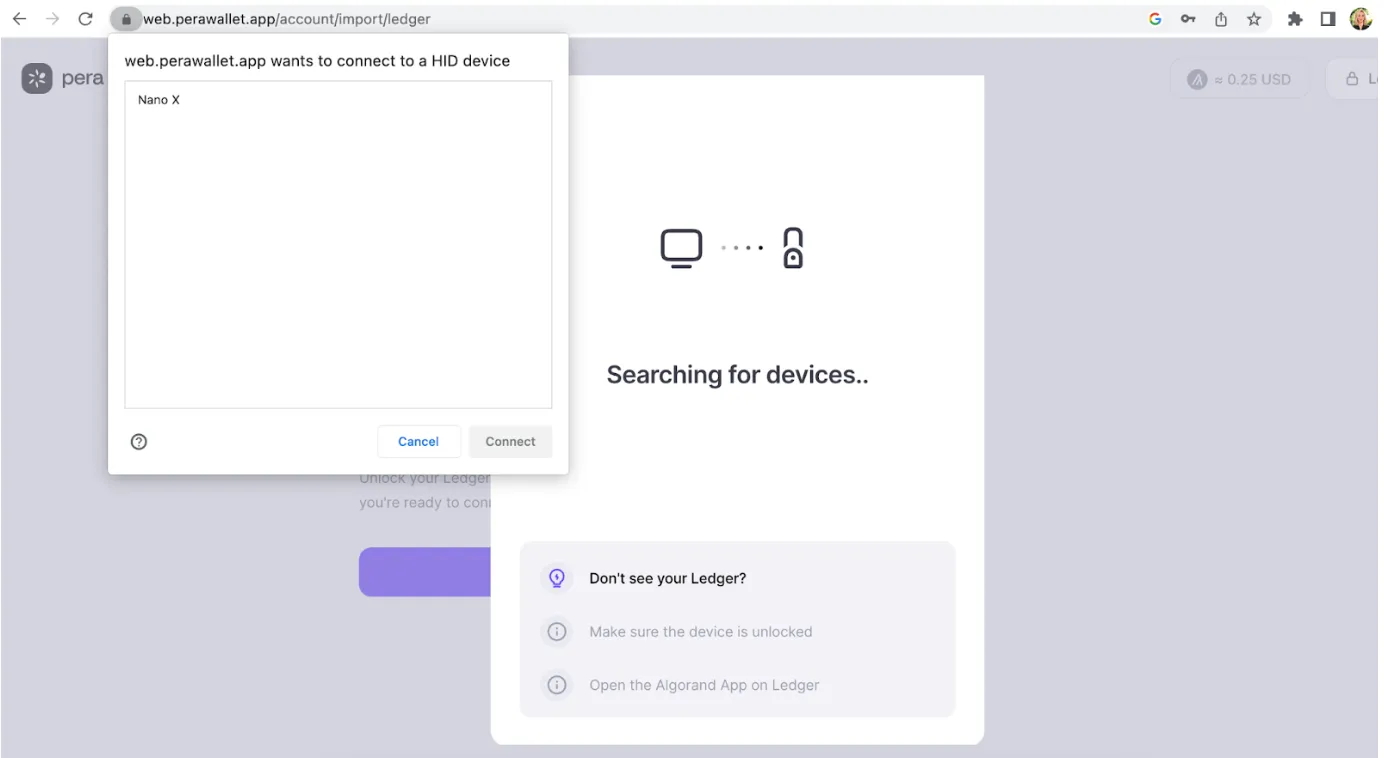
- Locate your device in the browser window and press Connect:
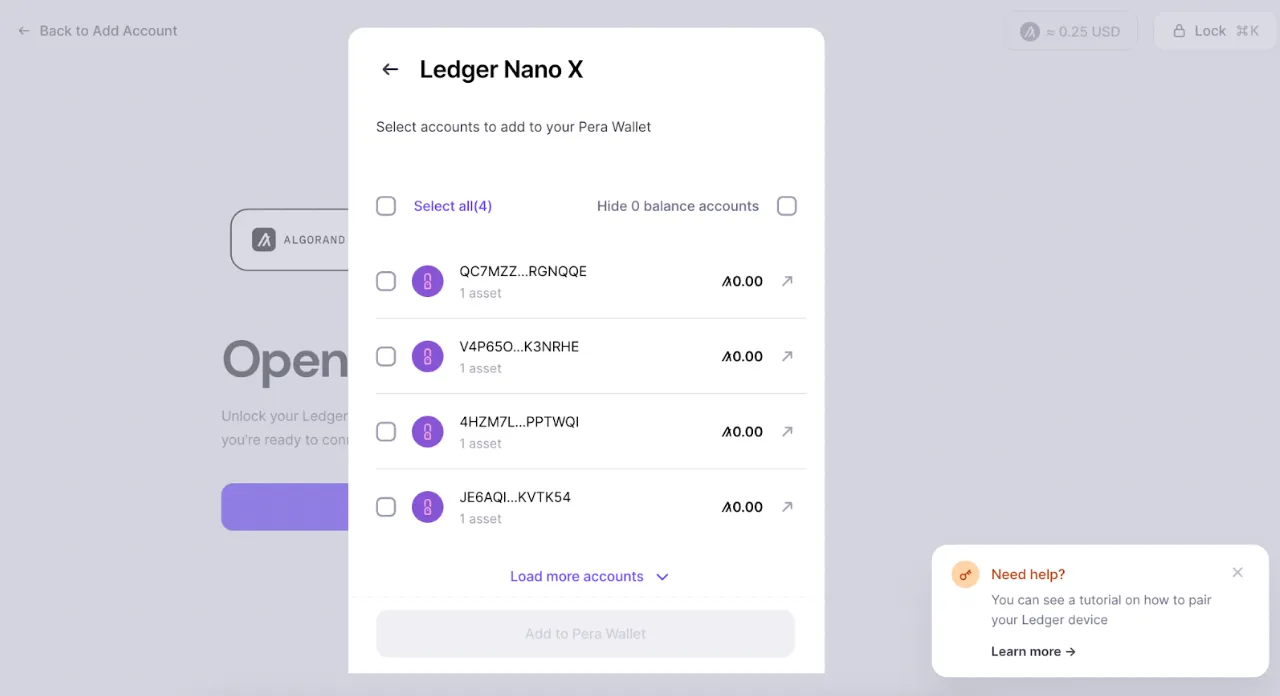
- Select an account to add to Pera Wallet from Ledger:
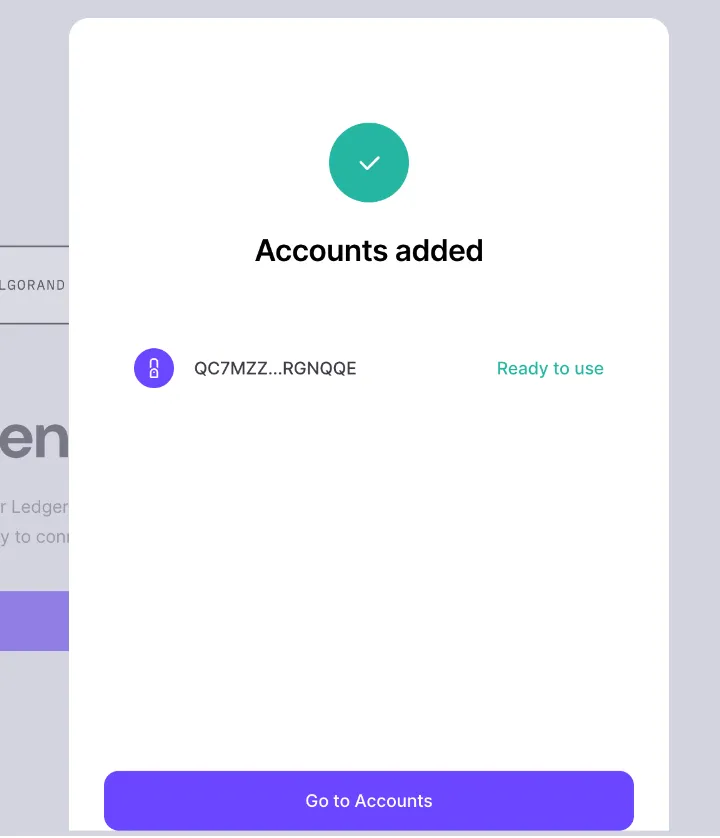
- Confirm success:
- On the Accounts screen, you’ll see your Ledger accounts with their respective icon:

Ledger Accounts can be used like any other accounts, but any transaction requests will need to be confirmed on the device directly.


 Download Now
 Get Extension