How can I pair my Ledger Nano X, Stax, and Flex?
Background info
You can now choose to create accounts within Pera Wallet that are backed by a Ledger Device hardware wallet. This means that your private keys never even touch the phone. Transactions from your Ledger-backed account will require authorization by your Ledger Device.
Disclaimer
While we’re excited to offer the security-enhancing integration with Ledger Device, please be aware that Ledger is a 3rd party tool / application. We will always offer support where we can, but these are advanced workflows and should be undertaken at your own risk. There might be times when you’ll need to work with Ledger support in order to understand your specific questions. You can also read more about Ledger on their website. We encourage it!
How to set-up Ledger Device?
Before we jump into the Pera Wallet workflows, you’ll need to set up your Ledger Device. Full instructions can be found on the Ledger Support site.
Once you’ve completed your Ledger Device setup, you must download the Algorand app on Ledger Live and install it on your device. Once you have this app installed and open, you’re ready to begin pairing.
How to Pair my Ledger
- From your account view, tap the + icon to add a new account.
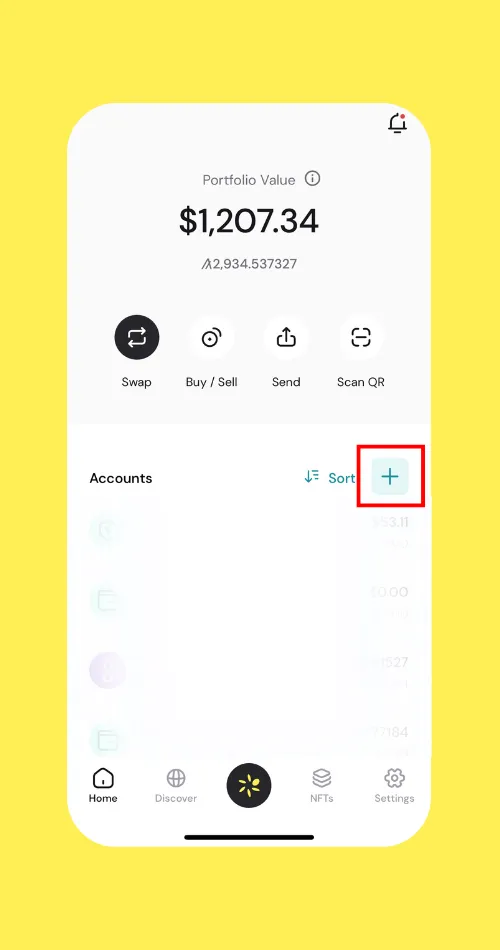
- From here, tap “Import an account” and then “Pair Ledger via Bluetooth”
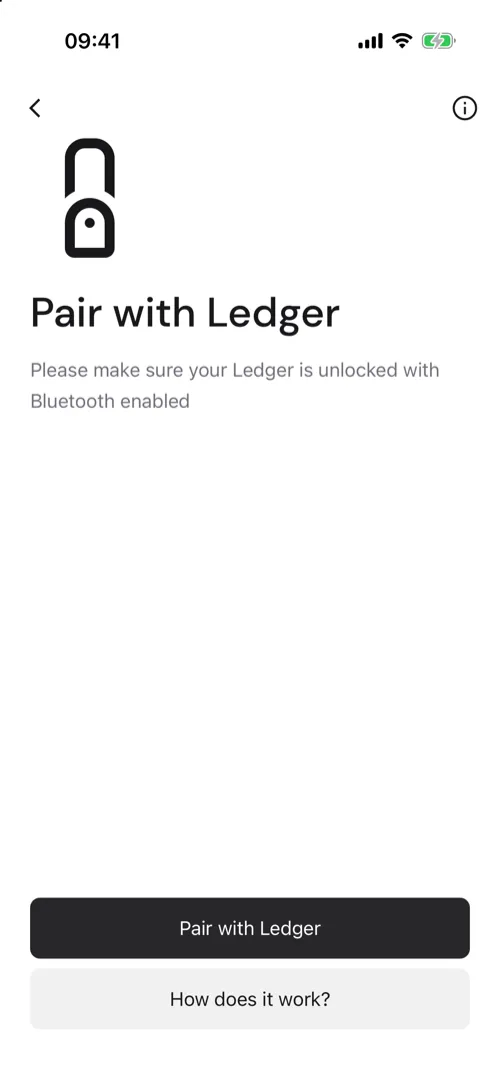
At this point in the pairing, please make sure you have your Ledger Device turned on, and open the device’s Algorand app. You’ll be able to see additional troubleshooting steps in Step #3.
- From this screen, we suggest you tap the “How does it work?” button to access the instructions so you can start the pairing process with all the clear information to make it work smoothly. Once you’ve read them, you can come back to the initial screen and tap Pair with Ledger.
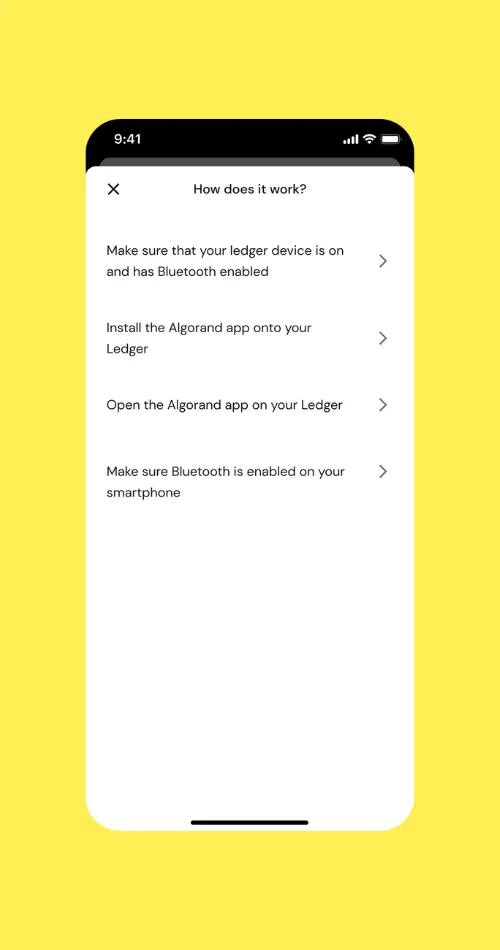
How does it work screen
- Select the Ledger device you want to connect: tap Connect next to your found device.
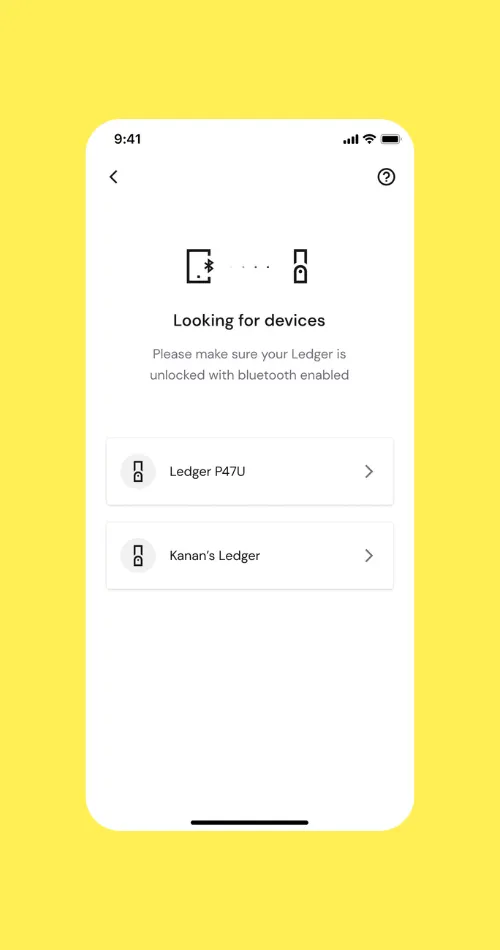
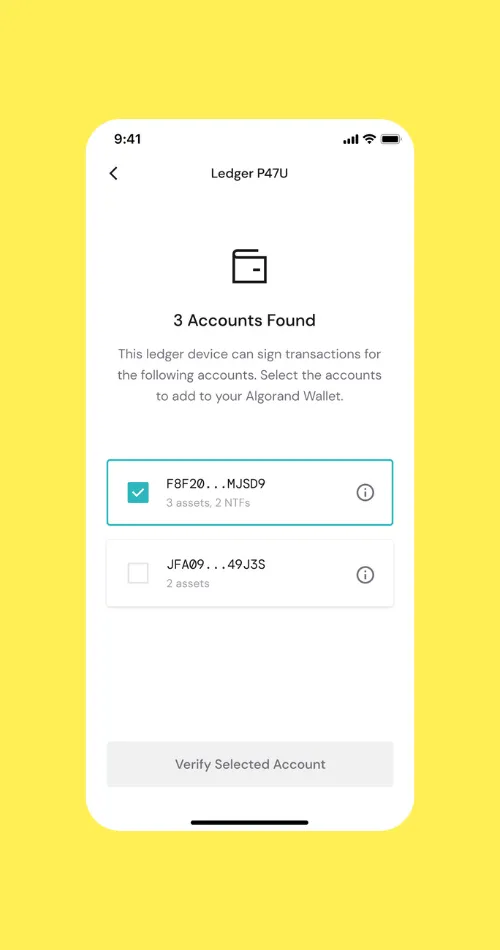
You’ll now be prompted to select the account or accounts you’d like to add. If this is a new Ledger device, you’ll only have 1 account to choose from. If you’ve created multiple Algorand accounts on your Ledger device (or utilized Algorand’s rekeying feature), you may see multiple accounts come up.
- Select the Algorand account(s) you’d like to add to your Pera Wallet.
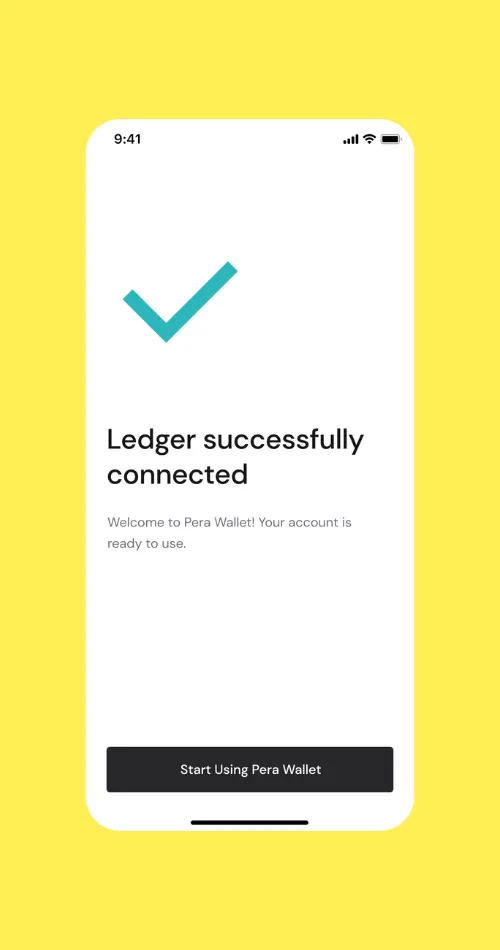
- That’s it! You should see your newly added account on the homepage
Pairing over USB
Under Import an account the app offers Pair Ledger via Bluetooth and Pair Ledger via USB. For USB, plug your Ledger into your phone with a USB cable, unlock it, open the Algorand app and allow USB access if your phone asks. USB pairing is not supported on every browser or device; the app tells you when it isn’t.
Restoring from Cloud Backup
Cloud Backup saves only the address of a Ledger account, never its keys. After restoring on a new phone, pair your Ledger again to sign transactions.
Additional Info
Treat your Ledger Device’s recovery passphrase as you would a normal Algorand Account’s recovery passphrase. If you lose your Ledger Device, the only way to recover your account will be using the passphrase you got from the setup. Whenever you send transactions, add assets, or interact with the blockchain using this account, you’ll need to have this device handy.


 Download Now
 Get Extension