How to transfer Algos from an Exchange to Pera Wallet?
Overview
On the Algorand Blockchain, Algos are the native currency that are needed to send transactions, add assets, and interact with applications. By the end of this tutorial, you’ll have successfully transferred Algos from an exchange to your Pera Wallet.
While this tutorial describes the process for transferring Algos from Coinbase to Pera Wallet, it can serve as a general guide for how the transfer process might look for any exchange that supports Algos. Additionally, Pera does not control the Coinbase application and these screenshots may change. If you have specific questions, please reach out to the exchange’s customer support team.
You should follow this tutorial if:
✅ You have Algos in an exchange that you would like to transfer to a Pera Wallet account.
✅ You already have an Algorand Account address on your Pera Wallet where you’d like to receive Algos.
If you’re unsure how to set up a Pera Wallet account please review this tutorial on setting up your wallet.
Step by Step Guide
Outline
- Copy your Algorand Address.
- Create Transaction in the exchange.
- Complete Transaction!
- Verify Transaction in Pera Wallet
Visual Guide
⚠️ You need to have your Pera Wallet address ready. To understand how to find your Pera Wallet address, please read the instruction on this page.
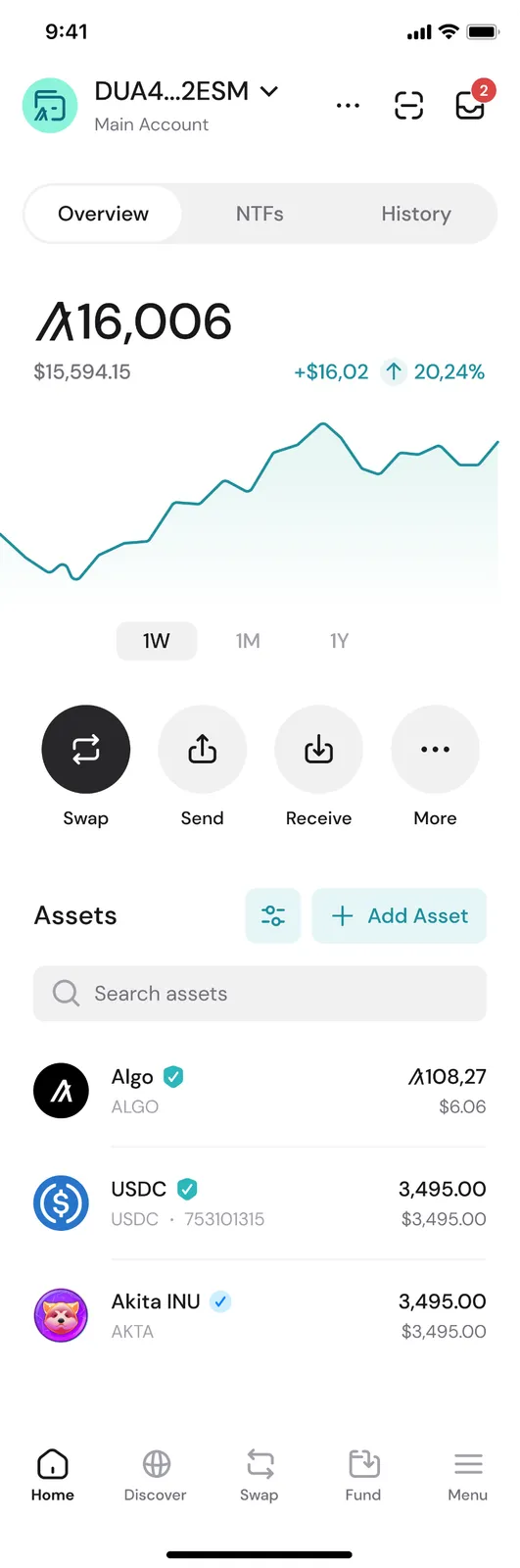
1a) Select the account that you want to send funds to and select the more button
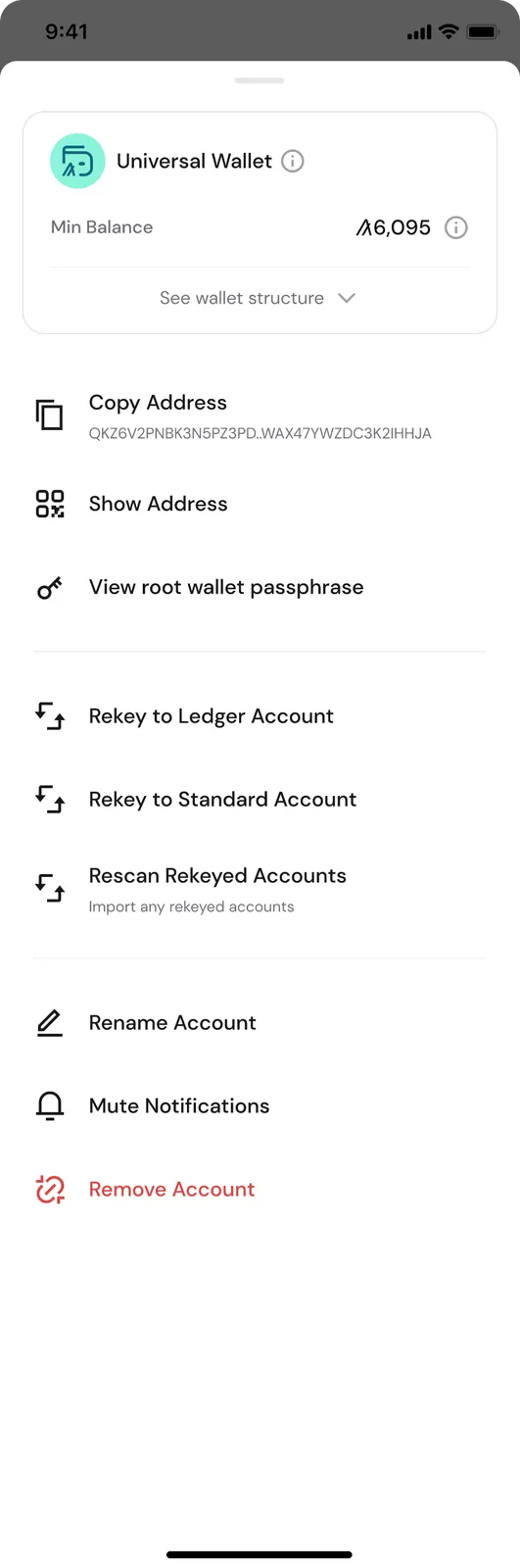
1b) Tap Copy Address or tap Show Address
- Head to the exchange and create a transaction to send crypto to another account. Make sure to choose Algos (or an Algorand Standard Asset) as the cryptocurrency you’d like to send because other cryptocurrencies aren’t supported within your Pera Wallet accounts.
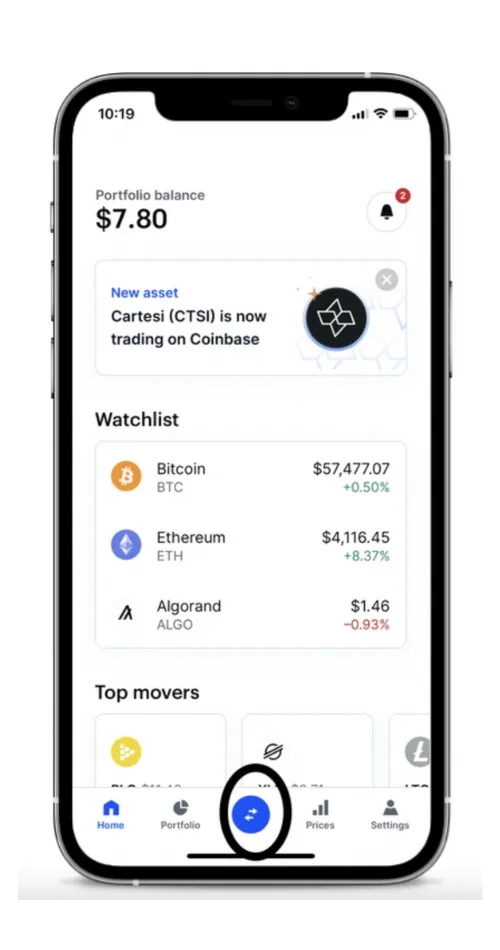
2a) In the Coinbase app, tap the center bottom blue button.
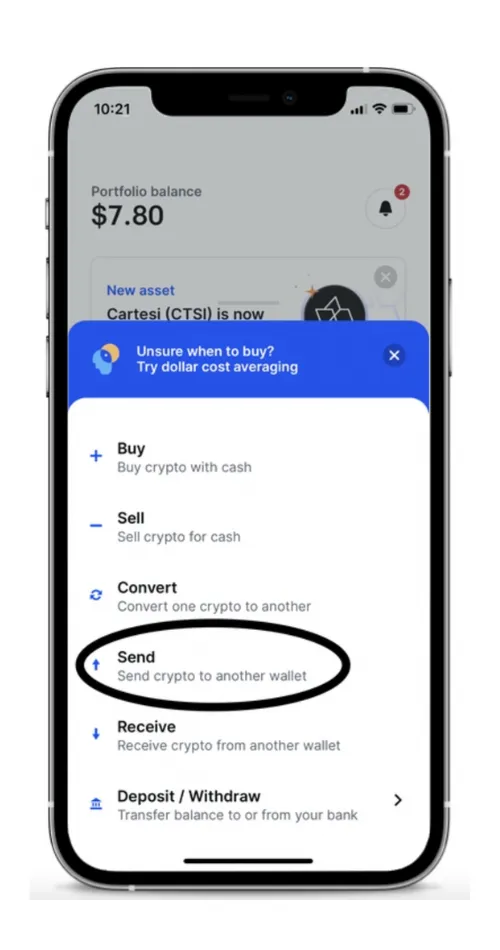
2b) From the menu of options that pop up, choose “Send Crypto to Another Wallet”
2c) Check that the asset shown is Algos. Enter the amount you want to send, either in terms of Algos or fiat currency.
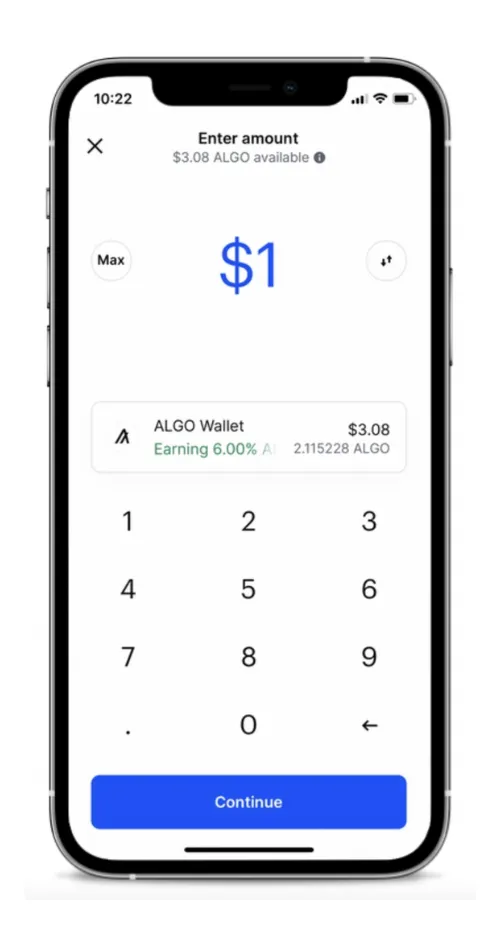
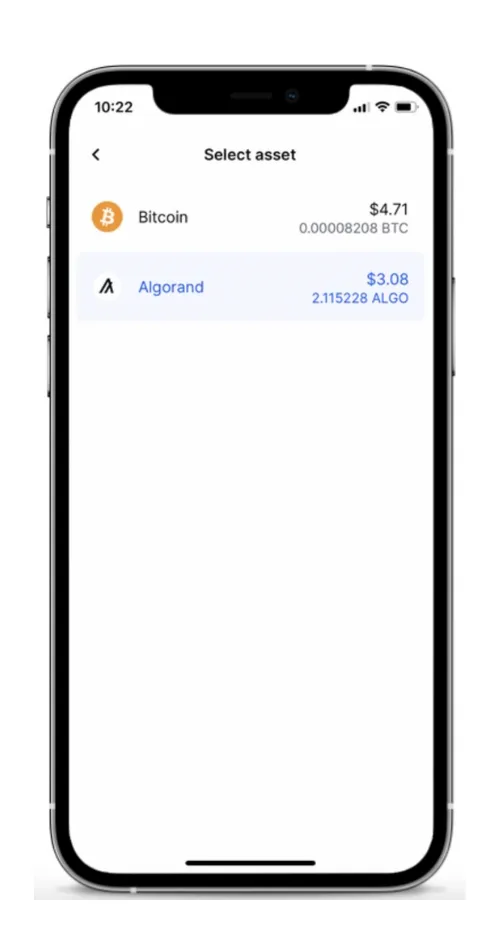
2d) If the asset shown is not Algos, click on the asset to get a list of available assets in your Coinbase portfolio and choose Algos.
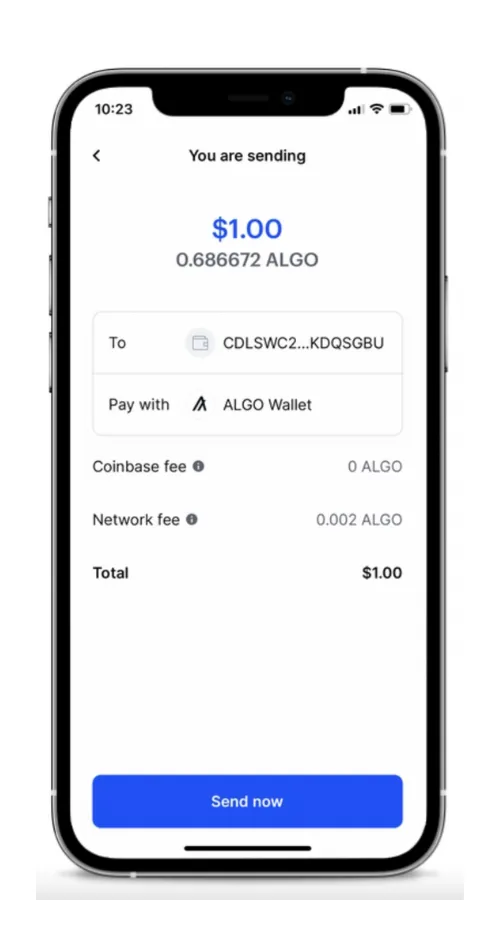
- Double check transaction details before completing transaction.
3a) Review the summary of your transaction details. Verify that this is accurate before tapping ‘Send now’.
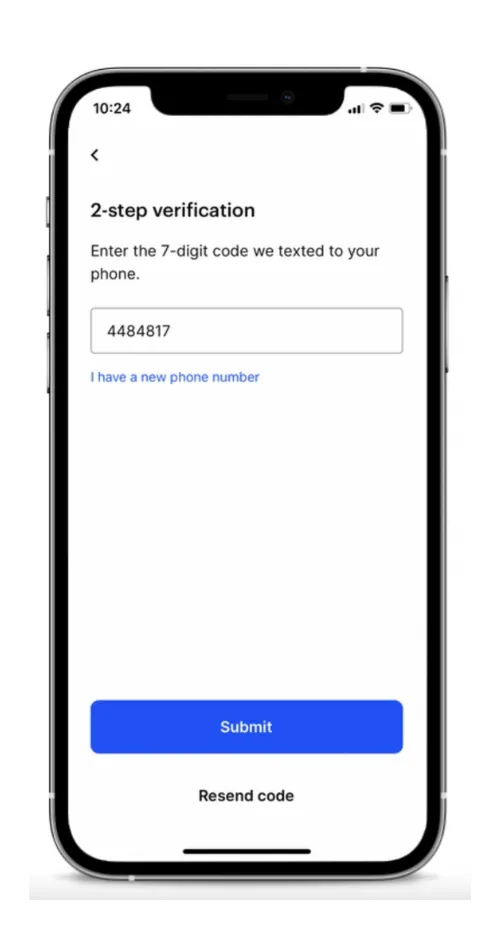
3b) When you’re ready to transact, you will likely be prompted with 2FA with Coinbase. Enter the 7 digit verification code and tap ‘Submit’.
- Verify your transaction within Pera Wallet. The transaction history will display that the transfer came from another account address rather than literally saying ‘Coinbase’.
4a) To verify the transaction within Pera Wallet, open the account’s transaction history, where the incoming transfer will show up!
We’ve successfully transferred Algos from our Coinbase account to Pera Wallet!
Additional Tips
Transactions complete in a few seconds on the Algorand Blockchain, but depending on the exchange or app you’re using, they might be experiencing their own delays, time restrictions, etc. If you do not receive the Algos after a certain time, please contact the exchange platform for more information.
As with all cryptocurrencies, please double check your address before sending any assets to it. Assets sent to the wrong address are considered ‘lost’ and cannot be recovered.
We’d recommend against saving exchange addresses as a contact within Pera Wallet. You will not be able to send money back to your exchange account using that same address. Instead please follow the exchange’s dedicated deposit flow each time you are looking to transact with the exchange.


 Download Now
 Get Extension